Radio Overlay
Switch channels, monitor radio activity, adjust volume, and use the crew intercom.
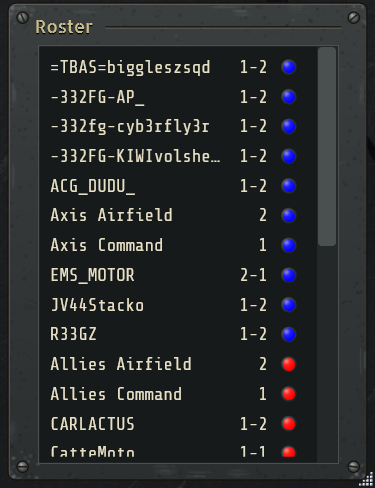
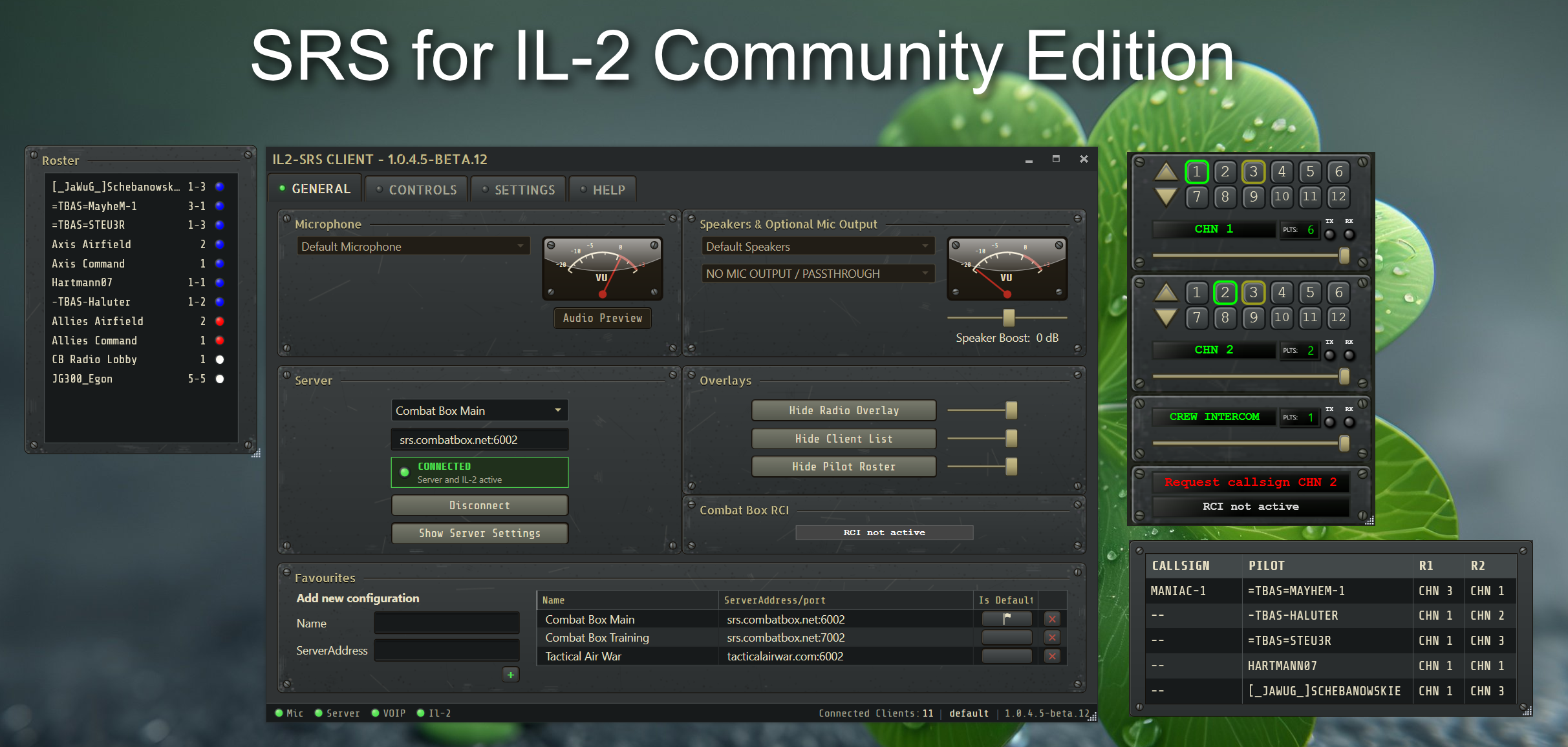
The Radio Overlay shows Radio 1, Radio 2 when enabled by the server, and crew intercom. It provides direct channel selection, channel up/down controls, volume, tuned pilot counts, active-radio state, and TX/RX indicators.
See Using both radios for an explanation of the active radio, PTT behavior, and practical Radio 1 and Radio 2 control setups.
Drag the overlay to move it and use its resize handle to scale it. Position, size, and transparency are retained between sessions. Reset Radio Overlay restores the saved overlay geometry to a known visible position and size.
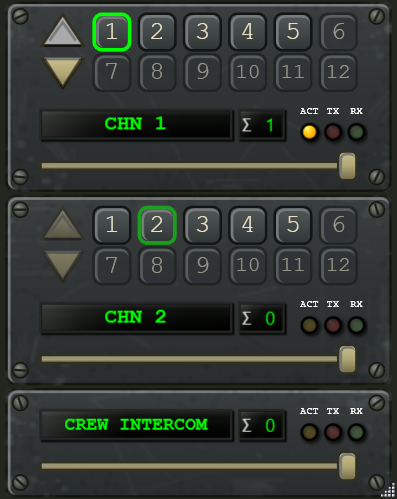
When a server limits its channel range, unavailable numbered buttons are visibly disabled:
Windows overlays cannot remain above an exclusive-fullscreen DirectX game. If an overlay appears when you Alt+Tab but vanishes after returning to IL-2, use Borderless or Windowed display mode in IL-2.
Run SRS and IL-2 at the same elevation level. Normally, neither application needs to run as administrator.
When overlay refocus is enabled, SRS returns focus to IL-2 after overlay interaction. Move, resize, or operate the overlay while it is focused, then return to the game.
The Client List shows connected SRS users and their radio state. Server coalition-security settings can restrict which information is available.
Use the General tab button or the Toggle Client List binding to show or hide it. The window keeps its chosen size and position when toggled.
The Pilot Roster shows friendly pilots, assigned callsigns, vehicles and spawn airfields when supplied by the server, and tuned Radio 1 and Radio 2 channels. Airfields use recognizable three-letter codes; hover a code to see the full name supplied by the server. Select a column header to sort the roster by that column.
Use the General tab button or the Toggle Pilot Roster binding to show or hide it. The window keeps its position and width when toggled. Its height fits the pilots listed, growing or shrinking as pilots join or leave; near the bottom of the screen it moves up so it stays visible. Drag the window’s edge to choose your own size instead: from then on the roster keeps that size, including after restarting SRS. If you resized the roster in an earlier version, that size is kept. SRS remembers your pilot name separately for Great Battles and Korea; start SRS before joining a multiplayer server in each game at least once so it can learn both names.
If the connected server does not provide Pilot Roster data, the window asks users to contact that server’s owners. Server administrators can follow the Pilot Roster integration guide.