Client administration
Server Health
Section titled “Server Health”The header remains visible while the Client Admin panel is open.
| Field | Meaning |
|---|---|
| Service | STARTING, RUNNING, DEGRADED, or STOPPED, based on the TCP and UDP listeners |
| Port | Configured TCP control and UDP voice port |
| Uptime | Time since the current server start |
| Clients | Connected human clients, excluding recognized service accounts |
| Voice Links | Clients with a ready UDP endpoint divided by connected clients |
| Recent TX | Transmitters detected during the previous two seconds |
| Memory | Current process working-set memory |
DEGRADED after startup normally means one listener could not bind or stopped unexpectedly. Check serverlog.txt, port ownership, firewall policy, and the host’s network state.
Open Client Admin
Section titled “Open Client Admin”Select Client Admin in the footer. The main window expands to the right without changing height.
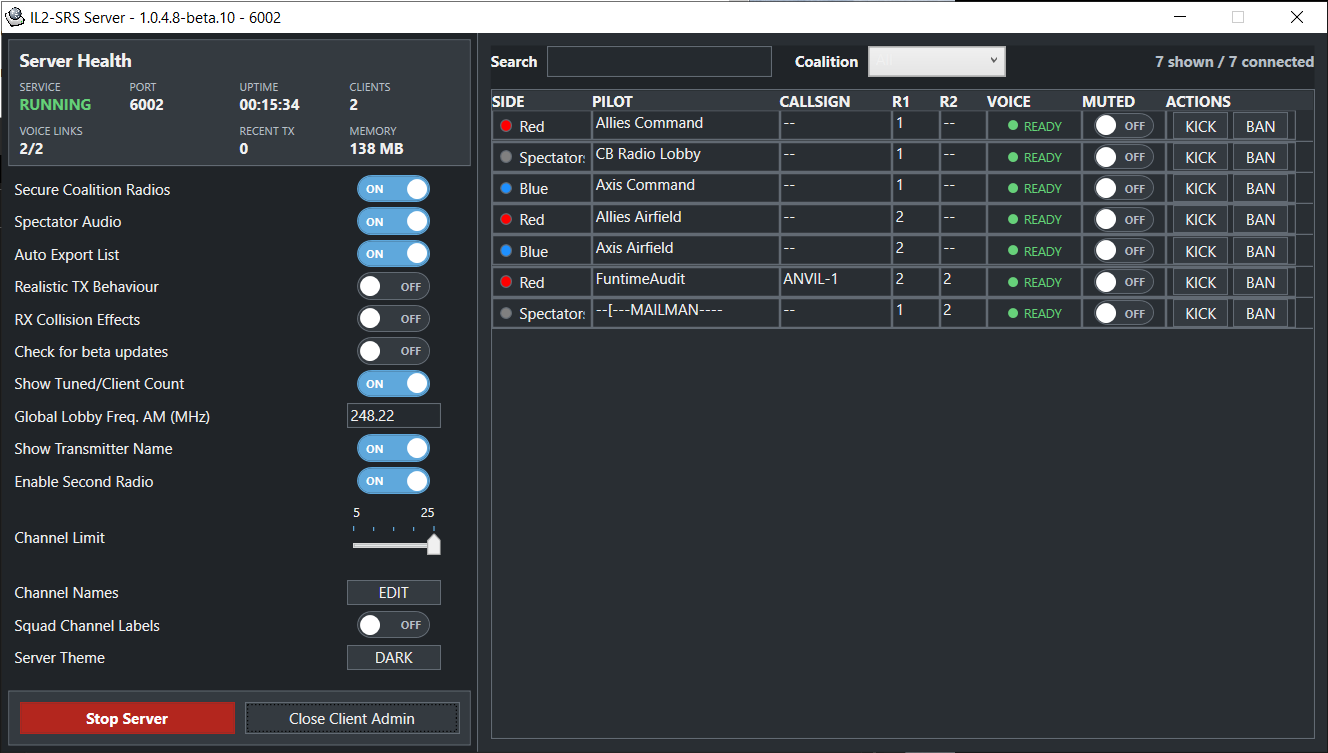
The live table contains coalition, pilot name, assigned callsign, Radio 1, Radio 2, voice-link status, mute state, and administrative actions.
- Search checks pilot, callsign, coalition, Radio 1, and Radio 2. Multiple terms must all match.
- Coalition filtering supports All, Blue, Red, and Spectators.
- Click a column header to sort. Radio channels sort numerically.
- Columns can be resized and reordered for the current session.
Voice state
Section titled “Voice state”| State | Meaning |
|---|---|
READY |
The TCP client is connected and the server has learned its UDP voice endpoint |
WAITING |
The TCP/control connection exists, but the UDP voice endpoint is not established yet |
A client that remains WAITING usually has blocked UDP traffic, a local firewall issue, or a network path that does not return voice packets to the configured server port.
Administrative actions
Section titled “Administrative actions”Server-side mute discards voice packets sent by that client. It is a runtime action and is not intended as a permanent sanction; the state is lost when the client reconnects or the server restarts.
Kick disconnects the selected client. It does not prevent an immediate reconnection.
Ban records the client’s IP address in banned.txt and disconnects the client. The ban list is loaded when the server starts.
To unban a client:
- Stop the server.
- Back up
banned.txt. - Remove the intended IP address from the file.
- Start the server and confirm normal operation.
The server asks for confirmation before stopping the service or closing the application, reducing accidental interruption during live operation.
Client export
Section titled “Client export”Enable the export only when another trusted tool needs connected-client state:
[General Settings]CLIENT_EXPORT_ENABLED=true
[Server Settings]CLIENT_EXPORT_FILE_PATH=clients-list.json
The server writes an updated JSON document approximately every five seconds. The default path is beside the executable. A custom absolute path is supported; if its directory cannot be created or written, the server logs the problem and falls back to the default file.
The export contains connected-client and server-version information. Treat it as operational data: do not publish it to an unrestricted web location unless exposing pilot names and radio state is intentional.
Operator checklist
Section titled “Operator checklist”- Confirm
RUNNINGbefore publishing the server address. - Confirm expected clients reach
READY, not only TCP connected. - Watch Recent TX during a voice check.
- Use mute for an immediate audio problem, kick for a disposable session reset, and ban only when persistent IP blocking is appropriate.
- Keep
serverlog.txtand the approximate incident time when investigating a fault. - Back up
banned.txtandserver.cfgbefore upgrading the server.