Server setup
What the server needs
Section titled “What the server needs”The SRS server is a standalone Windows application. It does not need to be installed inside an IL-2 game directory, and a client installation is not required on a dedicated host.
For each public instance you need:
- the current server files from the release ZIP;
- one unused port, reachable over both TCP and UDP;
- permission to write
server.cfg,serverlog.txt, andbanned.txtin the instance folder; - an optional Pilot Roster JSON producer if you want assigned callsigns and aircraft data.
Install one instance
Section titled “Install one instance”- Download the current package from GitHub Releases.
- Extract it to a dedicated folder such as
C:\IL2-SRS\main. - Allow
IL2-SR-Server.exethrough the host firewall for both TCP and UDP. - Run
IL2-SR-Server.exe. The service starts automatically and creates any missing settings inserver.cfg. - Confirm that Server Health reaches
RUNNINGand that Voice Links increases when a client connects.
RUNNING means both the TCP control listener and UDP voice listener are active. DEGRADED means at least one listener is unavailable after the startup grace period; check serverlog.txt and verify that the configured port is not already in use.
Run multiple instances
Section titled “Run multiple instances”Use a separate folder and unique port for every instance. This keeps logs, bans, exports, roster files, and supporting files from colliding.
You can also pass a specific configuration file with -cfg=:
IL2-SR-Server.exe -cfg="C:\IL2-SRS\instances\main\server.cfg"Use the exact lowercase argument shown above. Relative file paths inside server.cfg, including the Pilot Roster path, are resolved from the folder containing IL2-SR-Server.exe, not from the folder containing a custom configuration file.
Example instance layout:
C:\IL2-SRS\ main\ IL2-SR-Server.exe server.cfg banned.txt serverlog.txt training\ IL2-SR-Server.exe server.cfg banned.txt serverlog.txtConfigure the instance
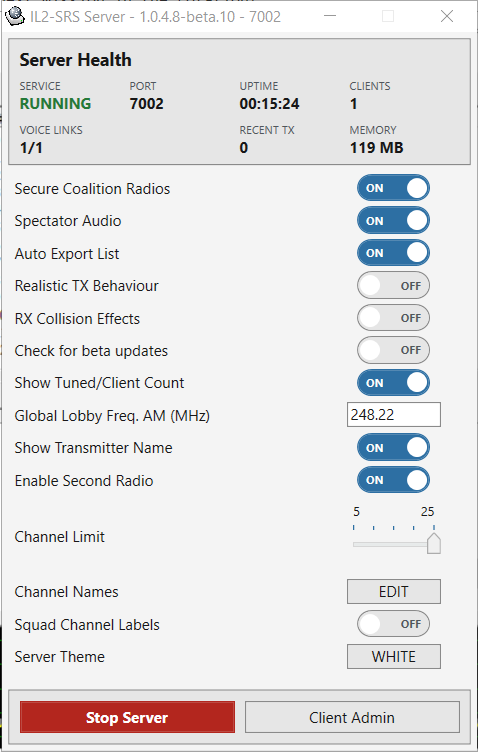
Section titled “Configure the instance”Use the server window for normal changes. UI changes are saved immediately, and most radio settings are sent to connected clients without a restart. For every key, default, and restart requirement, see the configuration reference.
The server window also provides:
- a persistent White or Dark theme;
- listener state, uptime, voice-link count, recent transmitters, and memory use;
- direct access to Client Admin;
- channel names, limits, and radio behavior controls.
Update safely
Section titled “Update safely”- Stop the SRS server and confirm the process has exited.
- Back up
server.cfgandbanned.txtfor each instance. Also preserve any local Pilot Roster source or custom integration files. - Extract the new release to a temporary folder.
- Replace the application files while retaining each instance’s configuration and ban list.
- Start one instance and confirm
RUNNING, a successful client connection, and a ready UDP voice link before updating the remaining instances.
Do not distribute a production server.cfg in a release or support bundle without reviewing it first. It can contain private filesystem paths and reserved integration values.
Files to know
Section titled “Files to know”| File | Purpose |
|---|---|
server.cfg |
Persistent server and radio settings |
serverlog.txt |
Startup, synchronization, roster, network, and voice-routing diagnostics |
banned.txt |
IP addresses blocked by Client Admin |
clients-list.json |
Optional generated client export; created only when enabled |
The default files are written beside the server executable. Include serverlog.txt when reporting server startup, synchronization, or routing problems.
Quick fault checks
Section titled “Quick fault checks”| Symptom | Check |
|---|---|
| Server immediately exits | Another process may already be using the configured port |
| Clients cannot connect | Allow inbound TCP and UDP on the server port and verify NAT forwarding |
| Client shows connected but voice is unavailable | Confirm UDP is allowed; Client Admin will show WAITING until the voice endpoint is established |
| Settings appear to revert | Stop the server before manually editing server.cfg, then restart it |
| Custom configuration is ignored | Use the exact -cfg="..." argument and verify the service account can read and write the file |
| Pilot Roster is unavailable | Check the configured JSON path and roster warnings in serverlog.txt |
Next guides
Section titled “Next guides”- Configuration reference for every supported
server.cfgkey. - Radio behavior for security, channels, collisions, and priority transmitters.
- Client administration for health monitoring, mute, kick, ban, and exports.
- Pilot Roster integration for assigned callsigns and aircraft.