Using both radios
SRS can monitor Radio 1 and Radio 2 at the same time. Each radio has its own channel and volume, so you can listen to two different groups without running a second copy of SRS.
A common multiplayer arrangement is:
- Radio 1 for Command or the main tactical net
- Radio 2 for Tower/ATC, a flight, or a squadron net
The actual channel use and names are chosen by each server.
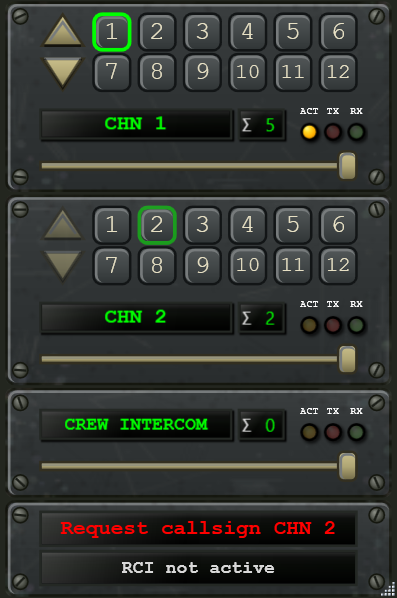
Reading the Radio Overlay
Section titled “Reading the Radio Overlay”Radio 1 is the top panel and Radio 2 is directly below it. Each panel shows:
- numbered channel buttons and channel up/down controls
- the current channel name or number
- Σ, the number of pilots tuned to that channel
- a separate volume slider
- ACT, TX, and RX indicators
ACT shows which radio is selected. TX lights while you transmit on that radio, and RX lights while you receive on it. The selected channel and controls are brighter on the active radio and dimmer on the other radio.
Click a radio’s ACT indicator or channel-name display to make that radio active. Clicking a numbered channel button changes that radio’s channel without changing which radio is active.
Choose how you transmit
Section titled “Choose how you transmit”There are two useful control schemes.
One Common PTT
Section titled “One Common PTT”Bind Common PTT 1 and use Select First Radio, Select Second Radio, or Select Next/Previous Radio to choose the active radio. Common PTT always transmits on the radio whose ACT indicator is lit.
This setup needs fewer controls, but check the active radio before transmitting.
One control for each radio
Section titled “One control for each radio”Bind Select First Radio and Select Second Radio, then enable Radio Switch works as Push To Talk (PTT) in Settings. Holding either control selects that radio and transmits on it.
This is usually the quickest setup in combat because each physical button always talks on the intended radio. You can still keep a Common PTT binding as an additional option.
Change channels
Section titled “Change channels”You can change either radio independently:
- click its numbered channel buttons or up/down arrows on the overlay
- use Radio Channel Up/Down for the currently active radio
- use Radio 1 Channel Up/Down or Radio 2 Channel Up/Down without first changing the active radio
Servers can limit the available channel range. Buttons above that limit are disabled and shown in gray.
Balance or mute the radios
Section titled “Balance or mute the radios”Use each panel’s volume slider to balance incoming audio. For example, keep your flight radio louder and Command slightly quieter when both are busy.
The Controls tab also provides bindings to mute or unmute:
- the selected radio
- the other radio
- both radios
Muting a radio affects what you hear; it does not change its channel or prevent you from selecting another radio.
If Radio 2 is missing
Section titled “If Radio 2 is missing”Server owners can disable the second radio. When that happens, SRS intentionally hides the Radio 2 panel and all normal radio controls operate Radio 1. This is a server setting, not a client installation problem.
Crew intercom is separate from Radio 1 and Radio 2 and is mainly used when more than one player occupies the same aircraft.
See Controls and PTT for every available binding and Overlays for display and visibility help.